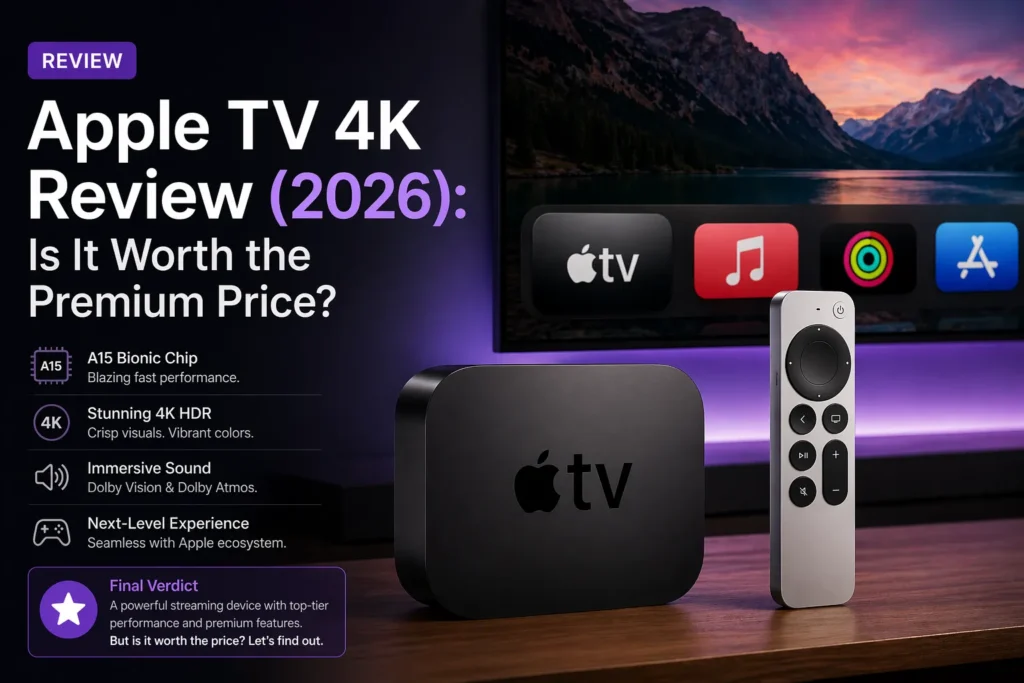
To use IPTV on Apple TV, install a compatible IPTV player from the tvOS App Store, add the Xtream Codes or M3U details supplied by your legitimate television service, refresh the guide, and test playback. Apple TV does not include a general-purpose IPTV player, and the player app normally includes no channels of its own.
This guide combines the strongest search intent visible in leading results: IPTV on Apple TV, best IPTV player for Apple TV, and Apple TV IPTV setup. It is designed for real households in the United States and Canada, where app availability, local content, taxes, sports rights and data plans can differ.
What IPTV on Apple TV actually means
IPTV is television delivered over internet protocol. Apple TV is the playback device. A tvOS player reads an authorized playlist or account and turns it into a guide, favorites, live channels and on-demand libraries. These are three separate layers: the internet connection, the player application and the television service. Keeping them separate makes troubleshooting much easier.
An attractive App Store player does not prove that a third-party service owns distribution rights. Likewise, a legitimate subscription can work poorly in an abandoned player. Evaluate identity, rights, support and payment separately from interface quality.
What you need before you start
- Apple TV 4K or a supported Apple TV HD model with current tvOS.
- An HDMI television and compatible cable.
- An Apple Account signed in to download apps.
- Stable broadband over Wi-Fi or Ethernet where the model includes a port.
- A legitimate IPTV subscription authorized for your location.
- Xtream Codes, M3U or another login method supported by the chosen player.
- An iPhone or iPad nearby for faster setup and secure copy-and-paste where supported.
How the leading Google titles shaped this guide
Current high-ranking pages repeatedly combine three promises: a short setup guide, a list of player options and fixes for Apple TV-specific limits. That is why this page uses the title “IPTV on Apple TV: Best Players & Setup Guide (2027)” while going deeper into picture settings, network tests, privacy, accessibility, USA/Canada differences and twenty common failures. The wording targets the query; the content must still earn the ranking by solving the task completely.
How to choose the best IPTV player for Apple TV
Do not select a player only because another article ranks it first. App Store availability, prices, device requirements and features change. Search the current tvOS store for maintained candidates such as UHF, IPTVX, iPlayTV or Smarters Player Lite, then confirm the developer, tvOS support and login method before paying. The exact names available can differ by country.
| Feature | Why it matters | What to verify |
|---|---|---|
| Xtream Codes login | Shorter fields and organized live/VOD libraries | Server, username and password support |
| M3U and XMLTV | Portable playlists and separate guide sources | Remote URL entry and EPG mapping |
| Remote-first design | Daily navigation should not feel like a phone app enlarged for TV | Grid guide, focus visibility and quick channel return |
| Favorites and category hiding | Large playlists become usable | Per-profile or per-playlist organization |
| Captions and audio tracks | Essential for accessibility and multilingual homes | Track selection on live and on-demand content |
| Catch-up and recording | Useful only when the service and rights support them | Provider compatibility, limits and storage behavior |
| Sync | Helpful across Apple TV, iPhone and iPad | iCloud, account and purchase coverage |
| Privacy | Login details can expose the subscription | Developer identity, data collection and permissions |
| Pricing | Free download may hide subscriptions or lifetime unlocks | Current App Store price and family/device terms |
Player recommendations by household
The best player is the one that fits the household, not the one with the longest feature list. Use these profiles to decide what to test.
The first-time user
This viewer prioritizes simple sign-in, clear favorites and a readable guide. The best fit is usually an app with Xtream Codes support, a short onboarding flow and uncomplicated remote navigation. Before choosing, avoid paying for advanced multi-playlist tools before the basic trial works. The player should make the household routine easier; a longer feature list is not automatically better if the remote flow becomes slow or confusing.
The Apple ecosystem household
This viewer prioritizes sync across Apple TV, iPhone and iPad. The best fit is usually a universal Apple app with iCloud-based settings or purchase sharing where the developer supports it. Before choosing, confirm that a purchase covers the devices and family members you expect. The player should make the household routine easier; a longer feature list is not automatically better if the remote flow becomes slow or confusing.
The sports viewer
This viewer prioritizes fast channel changes, stable deinterlacing and a reliable grid guide. The best fit is usually a remote-first player with favorites, recent channels and catch-up support when the service provides it. Before choosing, test during a real event rather than judging only menus. The player should make the household routine easier; a longer feature list is not automatically better if the remote flow becomes slow or confusing.
The movie and series viewer
This viewer prioritizes posters, continue-watching, subtitles and audio selection. The best fit is usually a player with separate VOD and series libraries and clear metadata. Before choosing, verify that the source actually supplies the tracks and artwork the app displays. The player should make the household routine easier; a longer feature list is not automatically better if the remote flow becomes slow or confusing.
The multilingual home
This viewer prioritizes language labels, subtitles and separate favorites. The best fit is usually a player that exposes audio tracks and handles Unicode guide data cleanly. Before choosing, test every required language during the trial. The player should make the household routine easier; a longer feature list is not automatically better if the remote flow becomes slow or confusing.
The accessibility-focused viewer
This viewer prioritizes captions, VoiceOver compatibility and readable controls. The best fit is usually an app whose App Store page and real interface support the needed accessibility features. Before choosing, test the exact app and content combination because support can vary by stream. The player should make the household routine easier; a longer feature list is not automatically better if the remote flow becomes slow or confusing.
The multiple-playlist user
This viewer prioritizes separate homes, sources or authorized subscriptions. The best fit is usually a player with clear playlist switching and per-source EPG settings. Before choosing, name each source carefully and protect every credential. The player should make the household routine easier; a longer feature list is not automatically better if the remote flow becomes slow or confusing.
The data-capped household
This viewer prioritizes predictable quality and no accidental 4K all day. The best fit is usually a player with quality selection or access to lower-bitrate channel versions. Before choosing, measure the Apple TV at the router and set a monthly alert. The player should make the household routine easier; a longer feature list is not automatically better if the remote flow becomes slow or confusing.
The older-TV owner
This viewer prioritizes stable 1080p output without unnecessary HDR switching. The best fit is usually a player that runs smoothly with conservative video settings. Before choosing, choose compatibility over forcing the highest format. The player should make the household routine easier; a longer feature list is not automatically better if the remote flow becomes slow or confusing.
The power user
This viewer prioritizes multi-view, external EPG, recording or advanced sorting. The best fit is usually a player whose current tvOS version documents those features. Before choosing, confirm storage, provider rights and feature limits before purchasing. The player should make the household routine easier; a longer feature list is not automatically better if the remote flow becomes slow or confusing.
How to set up IPTV on Apple TV step by step
1. Update tvOS and confirm the network
Open Settings → System → Software Updates and install an available update. Confirm the time zone and network. Apple TV can use Wi-Fi, while models with an Ethernet port can switch automatically to the wired connection when a cable is attached. Test speed at the box, not beside the router. Use the IPTV internet speed guide for realistic targets.
2. Search the tvOS App Store
Open the App Store, select Search and enter terms such as IPTV player, M3U or Xtream. Apple’s current guide says to select Buy or Get; Install means the app was previously acquired, and Open means it is already on the device. Review screenshots, developer, age rating, accessibility, privacy and in-app purchases before installing. See the official Apple TV App Store guide.
3. Install and open the player
Select Get or Buy, authenticate if requested and launch the app. A player should open with an empty library or a login screen. It should not promise an unexplained premium catalog. Move the app to an easy Home Screen position and turn on automatic updates if that fits the household.
4. Add Xtream Codes or M3U
For Xtream Codes-style login, enter the server URL, username and password. For M3U, enter the complete private playlist URL and, when supplied, the XMLTV EPG URL. Check protocol, port, slashes, capitals and trailing spaces. Read the Xtream Codes guide and M3U guide for format details.
5. Load the guide and organize favorites
Allow the first synchronization to finish. Confirm guide time against a known live program, then test live TV, VOD, captions, audio tracks, search and recent channels. Hide unused categories and create a short favorites list. Good organization is more valuable than a headline claiming tens of thousands of channels.
6. Optimize 4K, HDR and frame rate
Go to Settings → Video and Audio → Match Content. Apple documents Match Dynamic Range and Match Frame Rate for output that follows the original content. Test them separately because the screen may briefly go black when switching formats. Use Check HDMI Connection if playback drops. Official details are in Apple’s Match Content guide.
Xtream Codes vs M3U vs portal login
| Login | You need | Main advantage | Potential drawback |
|---|---|---|---|
| Xtream Codes-style | Server URL, username, password | Often organizes live TV, VOD, series and EPG automatically | The chosen tvOS player must support it |
| M3U + XMLTV | Private playlist URL and optional EPG URL | Portable and widely understood | Long URLs are harder to enter and easy to expose |
| MAC or portal | Portal URL and device identifier | Useful for services built around set-top-box workflows | Fewer Apple TV players support it; portal trust matters |
| AirPlay | Compatible iPhone/iPad app and same network | Quick testing without a full tvOS setup | Phone remains involved and some content may restrict casting |
Native tvOS app vs AirPlay
A native Apple TV player is normally the better daily setup: the box handles playback, the phone remains free, the Siri Remote controls the guide and the app can maintain favorites. AirPlay is valuable for a quick test or when an iPhone app has a feature missing from tvOS. It is not automatically more stable, and protected content can limit casting.
Test both only with authorized content. If AirPlay works but the tvOS app does not, compare login formats and player compatibility rather than assuming the service itself is down.
Best Apple TV picture and sound settings for IPTV
There is no universal “best” output because televisions, receivers and content differ. Start with a stable format supported by the entire HDMI chain. Then test Match Dynamic Range and Match Frame Rate. Apple TV attempts to match supported source formats, and brief blanking can occur during a switch. For most TVs, Apple identifies YCbCr as the preferred HDMI output; advanced chroma choices require a suitable cable and display.
For sound, begin with automatic output. If one stream is silent, test another before changing the whole system. If every app has a problem, inspect the television, soundbar, receiver and HDMI path. A 4K or Dolby label in a channel name does not guarantee that the source, app and hardware are delivering that format.
Internet speed, Wi-Fi and Ethernet
Use roughly 10–15 Mbps at the Apple TV as a practical target for one HD or Full HD stream and 25–40 Mbps for one 4K stream, plus headroom for other screens. Ethernet can reduce local Wi-Fi variability on models that include the port. The Wi-Fi-only Apple TV 4K model has no Ethernet port, so identify the hardware before planning a cable.
Apple recommends keeping the box and router in range while avoiding physical obstructions and metal surfaces. If the Apple TV cannot connect, restart the box, router and modem, then forget and rejoin the network. Do not change DNS or purchase mesh hardware before basic signal and congestion evidence points there.
20 Apple TV IPTV problems and fixes
Use the symptom that matches the evidence. Changing five unrelated settings at once makes the actual cause harder to identify.
The app is not visible in the App Store
The app may not support Apple TV, may be listed only for iPhone or iPad, may be unavailable in the current country, or may have been removed. Open the listing on Apple TV itself and confirm that tvOS is supported. Check the Apple Account region and software update. Do not change regions casually because purchases and subscriptions can be affected. If the player is unavailable, choose another maintained tvOS app that accepts the same authorized login format.
Get or Buy does not complete
Confirm the Apple Account is signed in, payment details are current for paid apps, restrictions allow purchases and the network is working. Restart Apple TV and try again. If storage is constrained, offload unused apps. Apple explains that offloading removes an app while retaining its data, whereas deleting also removes its local data. Do not factory-reset the box for a single failed download until simpler checks are exhausted.
Xtream Codes login fails
Compare the server URL, protocol, port, username and password character by character with the secure original message. Watch for a capital letter, zero versus the letter O, and spaces added by copy-and-paste. Test the account with the provider rather than guessing alternate URLs. Never share the password in a public screenshot. If every field is correct, the account may be expired, connection-limited or temporarily unavailable.
M3U playlist will not load
A private M3U link may be long and can include credentials. Paste the complete URL, including its protocol, port, path and query string. If the app distinguishes remote playlist from local file, choose remote URL. Test whether the provider has supplied a separate EPG address. A browser error does not always prove the playlist is invalid because some servers expect a player request, so use official support rather than publishing the URL for strangers to test.
Channels load but the guide is empty
Guide data may still be downloading, the XMLTV URL may be missing, or the playlist channel identifiers may not match the EPG. Refresh the guide, confirm automatic date and time, and leave the app open long enough for the first import. If the player allows an EPG source, attach it to the correct playlist. A channel can play perfectly without guide metadata because video and program listings are separate feeds.
The EPG is one or several hours wrong
Start with Settings on Apple TV and use automatic date and time in the correct region. Refresh the player guide. Only then use an EPG offset, and record the change so it can be reversed after daylight-saving transitions. A fixed offset that looks correct today can become wrong when the source or local clocks change. USA and Canada span several time zones, so verify using a known live program in the actual household location.
All channels buffer during the evening
Test another legal streaming app at the same time. Measure speed near the Apple TV, restart the router and box, and try Ethernet if the model has a port. Apple states that a wired connection is used automatically when Ethernet is connected. If Wi-Fi is required, avoid placing the box against metal or directly beside the router. Evening congestion can exist outside the home, so compare multiple days before replacing equipment.
Only one channel or event buffers
A single source problem is unlikely to be fixed by resetting the whole Apple TV. Test two other channels in the same player and the same channel at a different time. Report the exact channel, program, time, quality and error to support. Avoid repeatedly switching DNS, VPN or video settings when the evidence points to one feed. Keeping a short test log helps support reproduce the issue.
Picture plays but audio is missing
Test another channel and switch audio tracks in the player. Temporarily use television speakers to separate app playback from receiver or soundbar problems. Check Settings > Video and Audio and avoid forcing a format the connected equipment cannot decode. If one channel alone has no sound, report its audio track. If every app is silent, inspect HDMI, volume, audio output and the television input.
Audio and video are out of sync
Restart the affected stream, then compare another channel and another app. Disable unnecessary sound processing or Bluetooth headphones for the test. Receivers, soundbars and televisions may each add delay. Change one component at a time and write down the result. If the problem follows one stream across devices, it is probably source-specific; if it follows the Apple TV across apps, inspect system audio and HDMI settings.
The screen goes black briefly when playback starts
A short blank screen can occur when Apple TV switches dynamic range or frame rate. Apple notes this behavior when Match Content is enabled. Test Match Dynamic Range and Match Frame Rate separately, and use Check HDMI Connection. A persistent loss of signal can point to the HDMI cable, receiver path or unsupported display format. Do not assume the IPTV player is responsible until another video app is tested.
The picture looks washed out or too dark
Check whether the television is receiving SDR, HDR10 or Dolby Vision and whether the picture mode is appropriate for that format. Use Match Dynamic Range so content can play in its original range when supported. Avoid copying calibration values from a different television. If only one stream looks wrong, compare another title in the same player before changing global settings.
The remote feels slow in a large playlist
Hide unused categories, reduce artwork loading if the player offers that choice, create favorites and clear stale guide data. Restart the app and Apple TV, then check free storage. A playlist with thousands of entries can stress indexing even when playback is fine. The fastest solution is often better organization rather than buying a new box. Ask the provider whether a smaller authorized playlist can be created.
Favorites or watch history do not sync
Sync behavior depends on the app developer, Apple Account, iCloud settings and whether the purchase covers multiple devices. Confirm the app documents sync rather than assuming every universal app shares data. Use the same account where appropriate and test with one favorite before organizing hundreds. Export a playlist or backup only through the app’s trusted feature, and never upload credentials to an unknown sync service.
The app closes or returns to Home
Update tvOS and the app, restart Apple TV and free storage. Reopen with a smaller category if possible. If crashes began after an update, record the version and send a concise report to the developer. Deleting and reinstalling may remove local playlists or settings, so confirm that credentials and backups are available first. Never paste private login details into a public App Store review.
A player purchase does not unlock every screen
Player licensing and IPTV connection limits are different. An app purchase may cover one Apple Account, a family group or a set number of devices; the television subscription may allow a different number of simultaneous streams. Read both sets of terms. Test concurrent playback only within the authorized limit. Do not buy extra app licenses to solve a provider connection error.
AirPlay disconnects or shows a black screen
Keep the iPhone or iPad and Apple TV on compatible networks, update both devices and test a normal local video. Some apps or protected content may restrict AirPlay. A native tvOS player is usually more reliable for everyday viewing because the phone stays free and the box handles playback directly. Use AirPlay as a quick compatibility test, not as proof that every stream and feature will work permanently.
Captions or subtitles are missing
Open the player’s track menu and test another program known to contain captions. Confirm the provider supplies the subtitle track and the app exposes it. Apple TV accessibility settings cannot create captions that are absent from the source. If captions matter, include them in the trial checklist across live TV, movies and series rather than checking only one title.
The app shows too many categories
Spend ten minutes hiding unused groups and building a favorites list. Put local news, household languages, children’s channels and regularly watched sports first. This is not cosmetic: shorter navigation reduces accidental selections and makes the service usable for everyone. If the app cannot hide or reorder categories, that limitation belongs in the player comparison score.
Data usage is higher than expected
A 4K stream can use several times the data of HD, and every active screen adds its own traffic. Exit playback when the room is empty and measure the Apple TV through the router or ISP meter. Compare the result with the IPTV data usage guide. Wi-Fi is only the local connection; it does not make traffic exempt from an ISP cap.
USA-specific checks
Keep a legal backup for essential local news, such as an official broadcaster app or antenna where reception permits. Use the USA IPTV subscription checklist before a long plan.
Canada-specific checks
Do not accept a generic “Canada channels” claim as evidence. Test the actual programs used in Toronto, Montréal, Vancouver, Calgary, Halifax or the household’s own market. Use the Canada IPTV guide for the buying checklist.
Privacy, payment and legal use
IPTV is a delivery technology. Legality depends on content rights. Choose services that identify the operator, publish terms, privacy and refund rules, use secure checkout and explain regional availability. Avoid sellers who request remote control of your Apple TV, ask for Apple Account passwords or direct you to an unrelated payment page.
Keep the M3U URL and Xtream credentials private. Use a unique account password. Before selling or giving away Apple TV, sign out and remove player profiles. A player developer and an IPTV service are separate companies, so evaluate both.
Apple TV storage and app maintenance
Apple TV streams video but stores apps and local data. If storage is tight, Settings → General → Manage Storage shows app usage. Offloading can preserve app data, while deletion removes local data. Confirm playlist credentials are backed up securely before reinstalling an IPTV player. Clear old guide data from inside the app when that option is trusted and documented.
A seven-day Apple TV test plan
- Day 1: install the player and test the login.
- Day 2: verify local channels, guide time and favorites.
- Day 3: test a live sports or news event at peak time.
- Day 4: test captions, alternate audio and on-demand content.
- Day 5: run all authorized simultaneous screens.
- Day 6: compare Wi-Fi and Ethernet where available, plus data use.
- Day 7: review support quality, app cost and the complete subscription price.
Only after the routine passes should you compare VinomTV plan lengths. Start with the official free-trial order page to confirm compatibility. Any player purchase is separate from the television subscription.
IPTV on Apple TV FAQ
Can you watch IPTV on Apple TV 4K?
Yes. Install a compatible IPTV player from the tvOS App Store and add credentials from a legitimate service. The player normally supplies no channels by itself.
What is the best IPTV player for Apple TV?
The best player is a maintained tvOS app that supports your login, EPG, favorites, captions, catch-up and remote navigation. Check the current App Store listing because availability and prices change.
Can I install TiviMate on Apple TV?
TiviMate is designed for Android-based platforms and is not a native tvOS app. Choose a maintained Apple TV player from the App Store instead.
Does Apple TV support Xtream Codes and M3U?
Many tvOS IPTV players support Xtream Codes-style login, M3U playlists or both. Confirm the exact methods in the current App Store description before paying.
Should I use AirPlay or a native Apple TV app?
A native tvOS player is usually better for daily use because the Apple TV plays independently. AirPlay is useful for quick tests or when the desired app exists only on iPhone or iPad.
How much speed does IPTV need on Apple TV?
A practical target is about 10–15 Mbps at the Apple TV for one HD or Full HD stream and 25–40 Mbps for one 4K stream, with extra capacity for other devices.
Why is IPTV buffering on Apple TV?
Common causes include weak Wi-Fi, evening congestion, an overloaded playlist, player cache or a source-specific issue. Compare multiple channels and another legal streaming app before changing settings.
How do I fix the wrong EPG time on Apple TV?
Set the Apple TV date and time automatically, confirm the correct time zone, refresh the guide and adjust the player EPG offset only if the guide source requires it.
Is IPTV legal on Apple TV in the USA and Canada?
IPTV is a technology. Use services that have permission to distribute their content in your location and provide clear terms, regional availability, secure payment and support.
Final verdict
Apple TV 4K can be an excellent IPTV device when the setup uses a maintained tvOS player, authorized credentials, stable internet and settings matched to the display. The best player is the one that handles the household’s login, remote, guide, languages and accessibility needs—not simply the app named first in a ranking. Install from the App Store, protect credentials, test for seven days and keep content rights separate from player features.