
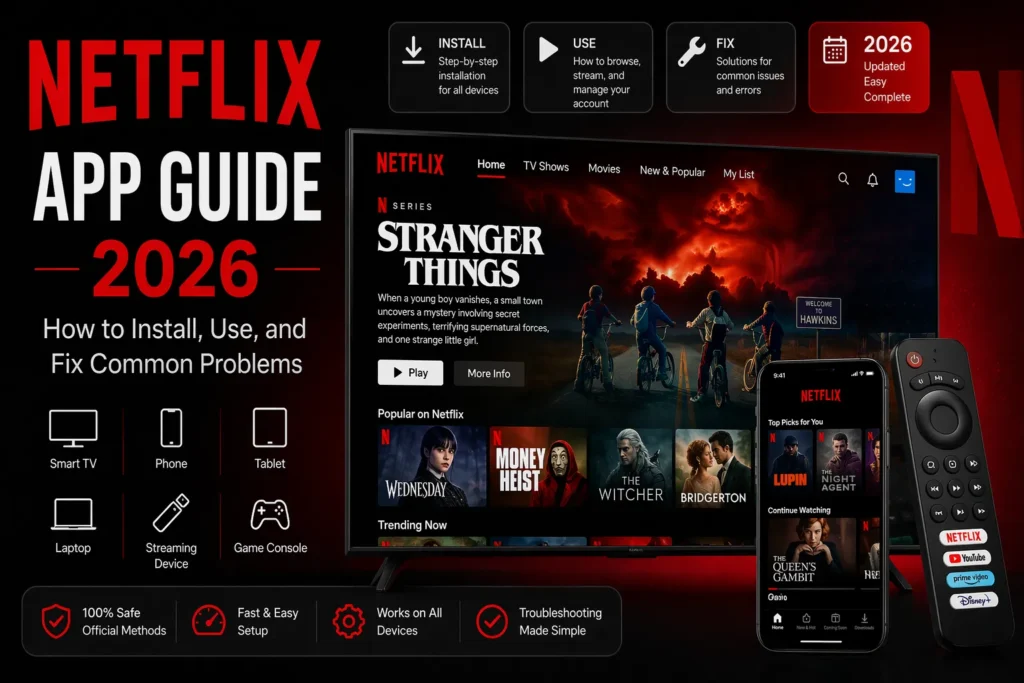
I have used the Netflix app on every device imaginable. iPhone. Android. Fire Stick. Roku. Apple TV. Smart TVs from five different brands. Even a cheap tablet from 2018 that should not have been able to run anything.
After all these years, I know exactly how the Netflix app works. Where the hidden settings are. How to fix the annoying bugs. And what to do when the app refuses to load.
This guide covers everything you need to know about the Netflix app in 2026. Installation. Navigation. Settings. Hidden features. Troubleshooting. By the end, you will know the app better than most Netflix employees.
Part of our guide to best streaming services 2026
Also see: Hulu App Guide → | Disney+ App Guide →
How to Install the Netflix App on Any Device
Netflix works on almost everything. Here is how to get it on the most common devices.
On iPhone or iPad: Open the App Store. Search for Netflix. Tap Get. Wait for the download. Sign in. That is it.
On Android phone or tablet: Open the Google Play Store. Search for Netflix. Tap Install. Wait. Sign in.
On Amazon Fire Stick or Fire TV: Go to the search magnifying glass. Type Netflix. Select the app. Click Download. It will install automatically. The Fire Stick home screen has a Netflix button on the remote. Press it.
On Roku: Press the home button on your Roku remote. Scroll to Streaming Channels. Search for Netflix. Add channel. The Netflix app appears on your home screen.
On Apple TV: Open the App Store on your Apple TV. Search for Netflix. Download. Sign in.
On Smart TV (Samsung, LG, Sony, Vizio, TCL): Find the app store on your TV. It might be called Samsung Apps, LG Content Store, or Google Play Store depending on your brand. Search for Netflix. Install. Open. Sign in.
On Xbox or PlayStation: Go to the Microsoft Store or PlayStation Store. Search for Netflix. Download. Launch. Sign in.
On computer (Windows or Mac): You do not need an app. Go to netflix.com in your browser. Sign in. That is it. Chrome, Firefox, Safari, and Edge all work.
How to Navigate the Netflix App
The Netflix interface looks different depending on your device. But the basic structure is the same everywhere.
The home screen: This is where Netflix recommends content for you. Rows of shows and movies. Top 10 in your country. Because you watched. Trending now. New releases. Netflix learns what you like over time. The more you watch, the better the recommendations get.
The search icon (magnifying glass): Tap this to search for specific shows, movies, or actors. Type the name. Netflix shows you results instantly. You can search by genre too. Type “Korean thriller” or “stand up comedy”. It works.
My List: This is your personal watchlist. When you see a show or movie you want to watch later, tap the + button or Add to My List. It saves to this section. You can remove things the same way.
Downloads: On phones and tablets, this section shows everything you have saved for offline viewing. Perfect for flights or commutes. Not available on TV apps.
New & Hot: Shows what just dropped on Netflix. New seasons. New movies. Coming soon. This is where you find fresh content.
Categories: Scroll down on the home screen. Netflix organizes content into categories. Action. Comedy. Drama. Horror. Romance. Sci-Fi. Documentaries. Each category has its own row.
Important Settings You Should Change
Most people never touch Netflix settings. That is a mistake. Here is what you should adjust.
How to find settings: Tap your profile icon in the top right or bottom right corner of the app. Then tap Account or App Settings depending on your device.
Playback settings (most important): Go to Account > Profile > Playback settings. Here you can change video quality. Auto is fine for most people. But if you have slow internet, select Low or Medium to stop buffering. If you have unlimited data and fast internet, select High or Auto for the best picture.
Data usage per screen: Still in playback settings. Low uses about 0.3 GB per hour. Medium uses about 0.7 GB per hour. High uses about 3 GB per hour for SD, 7 GB for HD, and 7 to 11 GB for 4K. If you have a data cap, set this to Low or Medium.
Download video quality: In App Settings on your phone or tablet. Choose between Standard and High. High looks better but takes more storage space. Each hour of high quality download uses about 3 GB of storage.
Autoplay previews: In Account > Profile > Playback settings. Turn off Autoplay Previews if you hate videos playing automatically when you scroll. Turn off Autoplay Next Episode if you do not want Netflix to jump to the next episode automatically.
Parental controls: In Account > Profile > Viewing restrictions. You can set maturity level. You can require a PIN to access certain profiles. You can block specific shows or movies by title.
Subtitles and captions: While watching a show, tap the screen. Tap the speech bubble icon or the dialog icon. Change subtitle size, color, font, and background. You can also turn on audio descriptions for blind or visually impaired viewers.
Hidden Features You Probably Did Not Know About
After years of using Netflix, I have found features that most people never discover.
Secret category codes: Netflix has hundreds of hidden genre categories. You access them by typing netflix.com/browse/genre/CODE into your browser. Replace CODE with a number. 1365 is Action and Adventure. 6548 is Comedies. 8711 is Horror. 6839 is Documentaries. 8883 is Romantic movies. There are over 30,000 codes. Search Google for Netflix secret codes to find the full list.
Keyboard shortcuts on computer: Press F for full screen. Press Space or K for play and pause. Press M for mute. Press Shift and left arrow or right arrow to rewind or fast forward 10 seconds. Press the number 1 through 9 to jump to that percentage of the movie or show.
Remove continue watching: Go to your account page on a computer. Find Viewing activity. Click the circle with a line through it next to any show or movie. It disappears from continue watching. Useful for shows you started but do not want to finish.
Rate everything you watch: Netflix uses your ratings to improve recommendations. On a computer, hover over a show or movie. Click the thumbs up or thumbs down. The more you rate, the better your home screen becomes.
Download on multiple devices: Depending on your plan, you can download to up to 6 devices at once. Great for families. Each person can download their own shows to their own phone or tablet.
Smart Downloads (phone and tablet only): In App Settings, turn on Smart Downloads. Netflix automatically deletes episodes you have watched and downloads the next episode in the series. You need to be connected to Wi Fi for it to work.
Test patterns: Search for Test Patterns on Netflix. It is a hidden video that helps you calibrate your TV picture. It shows color bars, resolution tests, and motion tests. Useful for home theater enthusiasts.
Common Problems and How to Fix Them
Based on user reports and my own experience, these are the most common Netflix app problems and how to solve them [citation:1].
The app keeps crashing or freezing: First, restart the app. Close it completely and open again. Second, restart your device. Turn it off, wait 30 seconds, turn it back on. Third, check for app updates. Go to your device app store and see if Netflix has an update. Fourth, reinstall the app. Delete Netflix, download it again, sign back in.
Netflix says cannot connect to the service: Check your internet connection first. Open another app or website. If that works, the problem is Netflix. If not, restart your router. Unplug it for 30 seconds, plug it back in, wait for the lights to return to normal. Try again.
Video is blurry or low quality: Netflix adjusts quality based on your internet speed. If your connection is slow, quality drops automatically. Check your internet speed. If it is below 5 Mbps, you will not get HD. Below 25 Mbps, you will not get 4K. Go to playback settings and set data usage to High or Auto.
Subtitles are wrong or out of sync: While watching, go to subtitle settings. Turn subtitles off and on again. If that does not work, restart the show or movie. If the problem continues, check for app updates or reinstall the app.
Cannot download for offline viewing: Make sure you have enough storage space on your device. Check your plan. Only Standard and Premium plans include downloads. The ad supported plan does not. If you are on the right plan, restart the app and try again.
The app says I am not in the same household: Netflix now requires all users to live in the same household. If you are traveling, you have 30 days to watch before you need to verify. If someone outside your household uses your account, they need to pay for an extra member slot.
The screen is black but audio works: This is a common issue on some smart TVs. Restart the app. Restart your TV. If that does not work, unplug your TV for 30 seconds and plug it back in. Check for TV firmware updates. Try disabling HDR in your TV settings if the problem continues.
Netflix App vs Browser: Which Is Better?
You have two ways to watch Netflix on a computer. The Windows app from the Microsoft Store. Or any browser like Chrome, Firefox, Safari, or Edge.
The browser version is better for most people. You do not need to install anything. You get the same video quality. All keyboard shortcuts work. And you can use browser extensions to add features Netflix does not have.
The Windows app is only useful if you want to download shows to a Windows computer. Most people never need this. Stick with the browser.
On Mac, there is no Netflix app. You have to use the browser. Safari works best because it supports 4K HDR on newer Macs. Chrome and Firefox are limited to 1080p.
Comparison: Netflix App on Different Devices
Not all Netflix apps are the same. Here is what each version can and cannot do.
| Feature | Phone/Tablet | Smart TV | Fire Stick/Roku | Computer Browser |
|---|---|---|---|---|
| 4K streaming | Yes (on supported devices) | Yes | Yes | Yes (Safari only on Mac) |
| HDR | Yes | Yes | Yes | Yes (Safari only) |
| Offline downloads | Yes | No | No | No |
| Smart Downloads | Yes | No | No | No |
| Keyboard shortcuts | No | No | No | Yes |
| Secret codes access | No | No | No | Yes |
If you want offline viewing, use a phone or tablet. If you want the best picture quality, use a smart TV or streaming device. If you want keyboard shortcuts and secret codes, use a computer browser.
Frequently Asked Questions
Why does my Netflix app keep crashing? Restart the app. Restart your device. Check for updates. Reinstall the app. If none of that works, contact Netflix support.
How do I get 4K on Netflix app? You need the Premium plan. You need a 4K TV. You need a device that supports 4K streaming. Then go to playback settings and set data usage to High or Auto.
Can I use Netflix app without internet? Yes for downloaded content. Download shows and movies while you have internet. Watch them offline anytime. No internet needed. Downloads expire after 30 days.
Why is my Netflix app in a different language? Go to Account > Profile > Language. Change it to your preferred language. The app will update after a few minutes.
How do I clear Netflix app cache? On Android, go to Settings > Apps > Netflix > Storage > Clear Cache. On iPhone, you cannot clear cache directly. Delete and reinstall the app. On Fire Stick, go to Settings > Applications > Manage Installed Applications > Netflix > Clear Cache.
Related guides:
Netflix Review 2026 →