
IPTV GUIDE
Easily install IPTV The Fox on your Smart TV, Fire TV Stick, Android, iOS, or computer. Follow this step-by-step IPTV activation guide to get streaming fast.
How to Activate IPTV on Any Device
Complete Setup Guide (2026)
1. Order
Choose your plan and receive login credentials via email within 2 minutes.
2. Install
Follow our guide to set up IPTV Smarters, TiviMate, or any app on your device.
3. Watch
Start streaming 18,000+ channels and 130,000+ movies instantly.
Set Up IPTV on Android & iOS Phones
Watch live TV and VOD on the go by installing IPTV The Fox on your smartphone. Use top-rated IPTV apps like IPTV Smarters or TiviMate to activate your IPTV subscription on Android or iPhone. Portable, fast, and works from anywhere.
Step 1: Download the App
For Android: https://www.iptvsmarters.com/smarters.apk and install the application IPTV Smarters Pro
For iOS: https://apps.apple.com/in/app/smarters-player-lite/id1628995509 and install the application IPTV Smarters Pro
Great! You now have the IPTV Smarters app
Step 2: Login with Xtream Codes API
Open the app once downloaded and enter the login details.
You can add IPTV channels to IPTV Smarters in two ways:
- Setup via Xtream Codes API.
- Setup via Playlist.
Setup IPTV Smarters via Xtream Codes API
We recommend setup via Xtream Codes API because you will have the Catchup feature this way and also do not need to add any EPG URL (it will load automatically).
STEP 1:
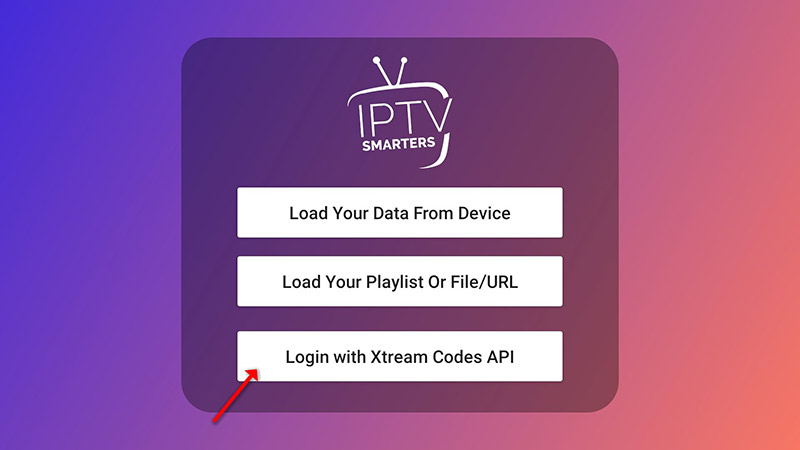
Open the app once downloaded and click on "Add user" then click on "Login with Xtream Codes API".
STEP 2:
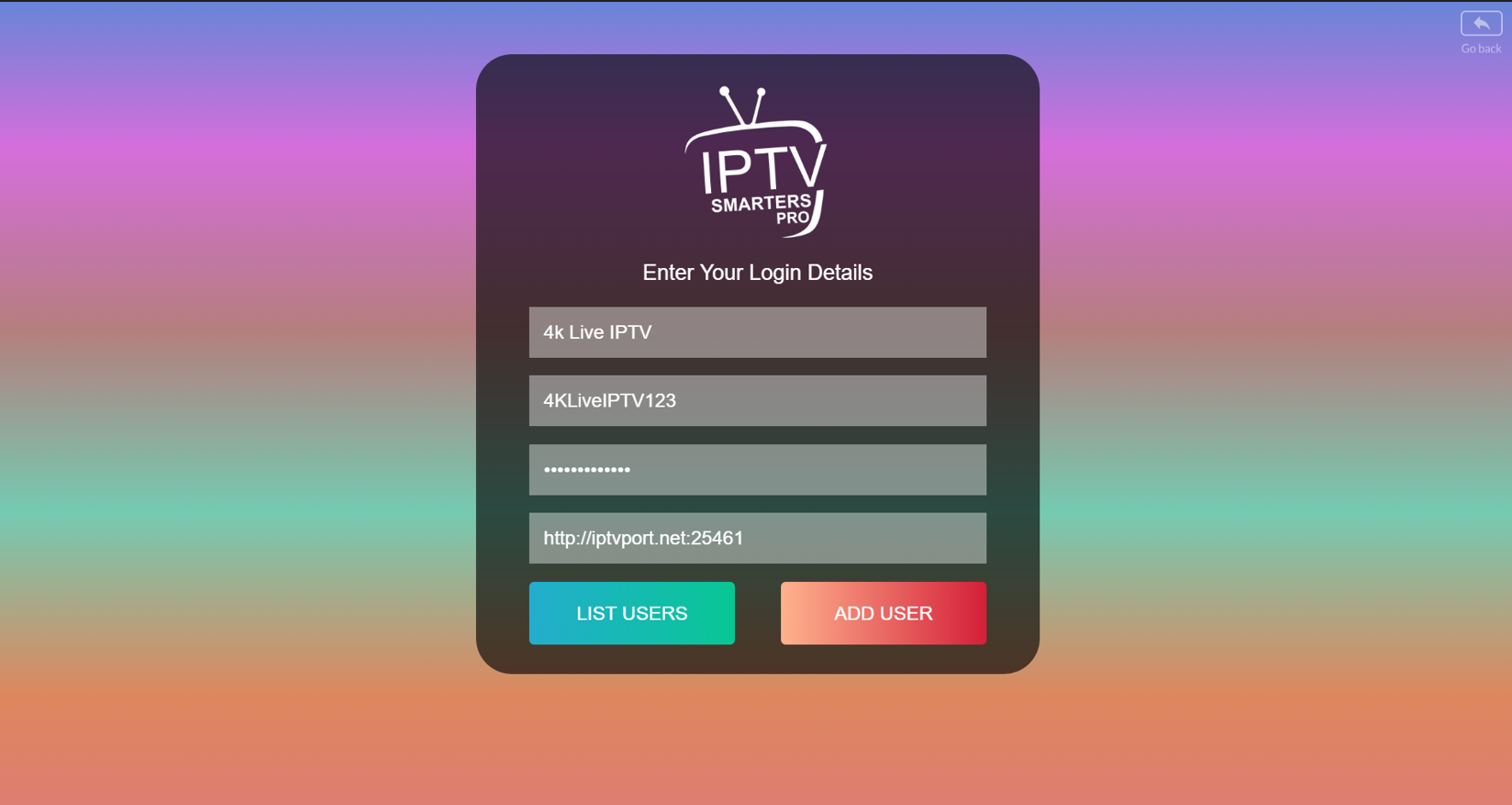
In this step, in the first box, select any name you want for example "4K Live IPTV". On the second and third boxes, enter the "Username" and the "Password" and the server URL that we sent you via Whatsapp or Email or Chat.
Now Click on "ADD USER" to proceed to the next section.
STEP 3:
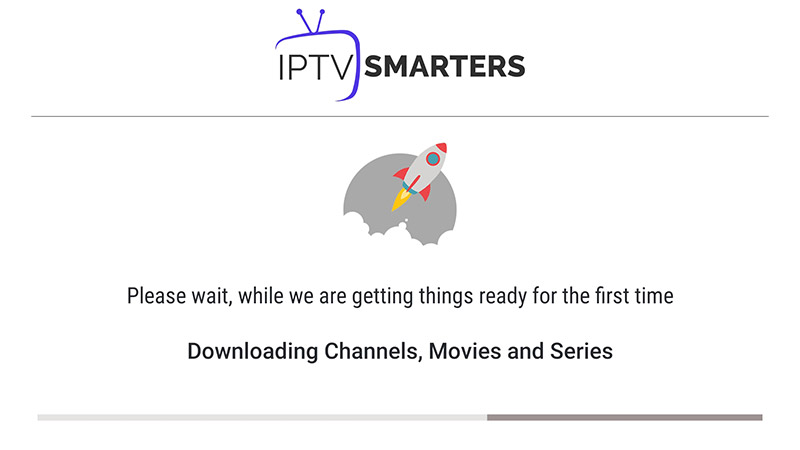
Wait some seconds.
STEP 4:
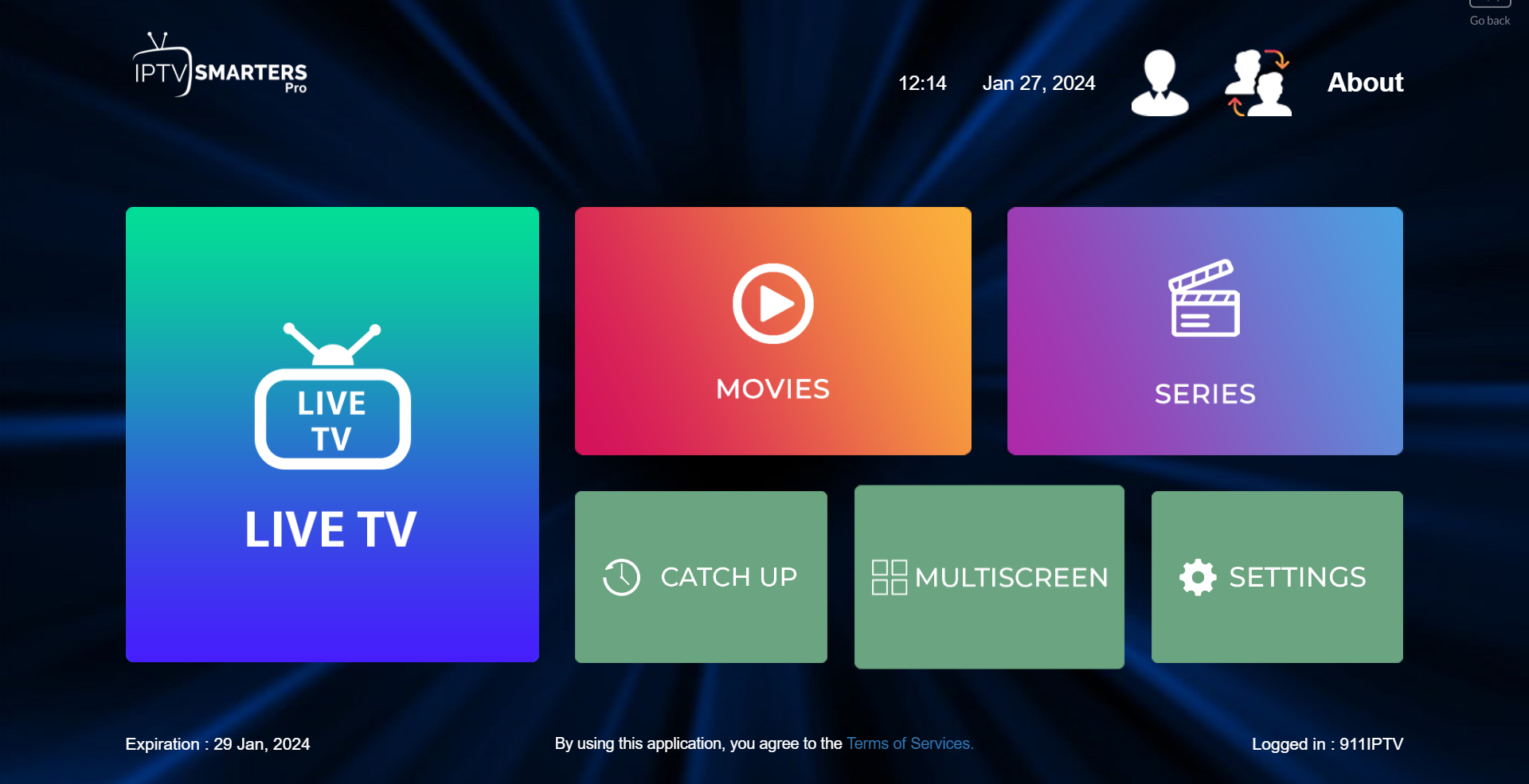
Now click on the "Live TV" icon as depicted in the image via a red arrow.
STEP 5:
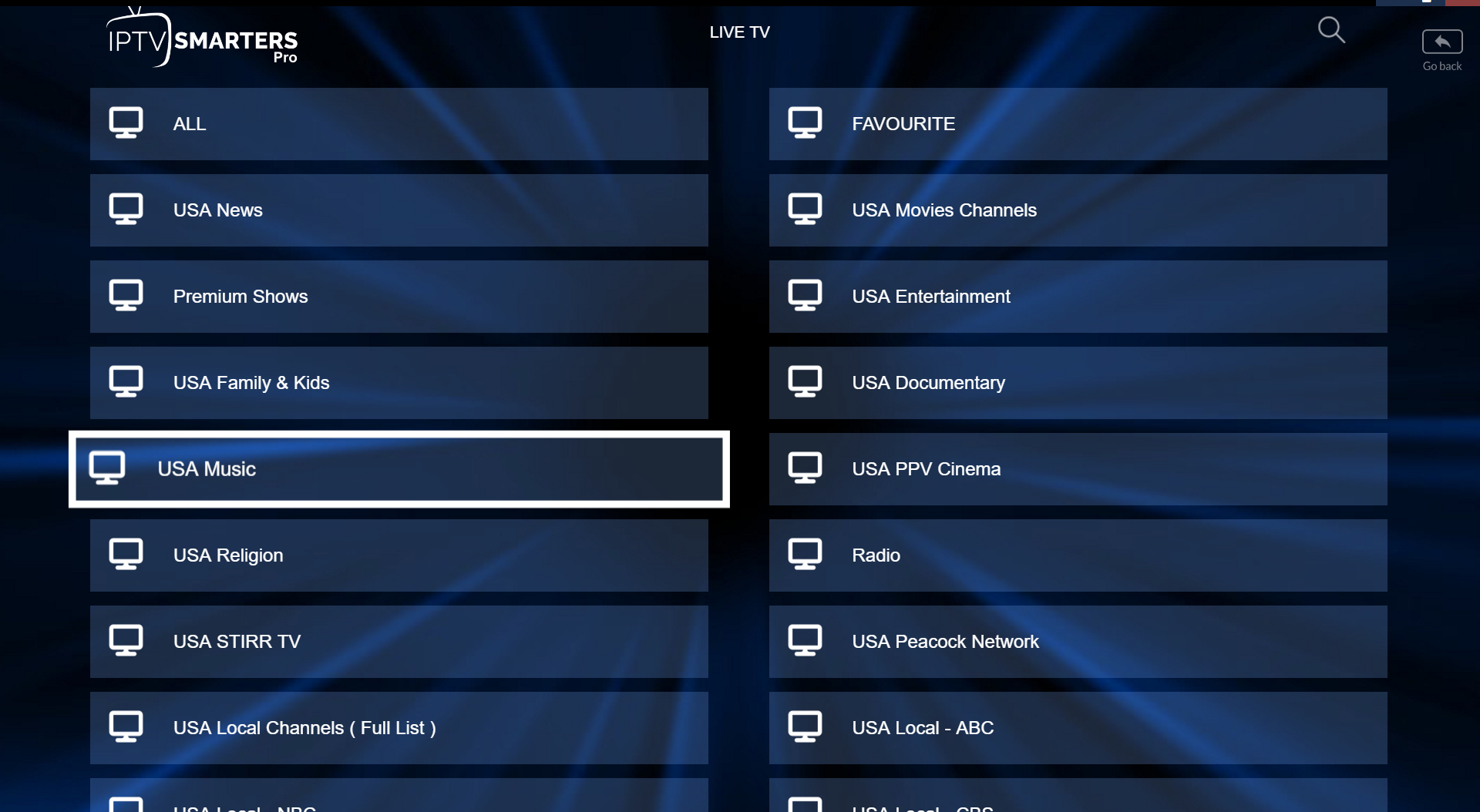
Now you must select the channel group that you want to watch and proceed to the next section.
STEP 6:
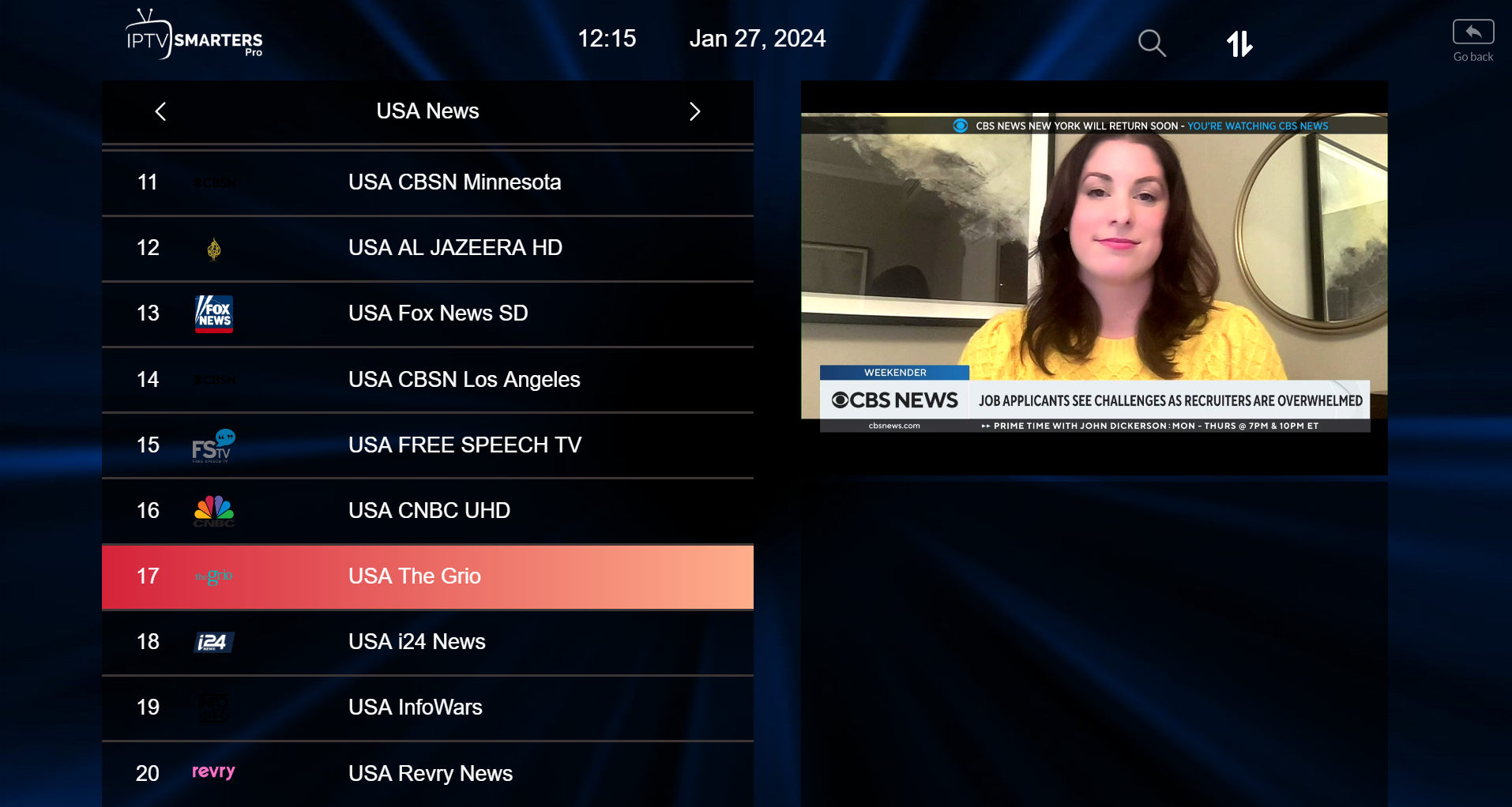
Now you must click on the channel name and then double click on the small screen to turn into the full screen as the final step.
Setup IPTV Smarters via Playlist
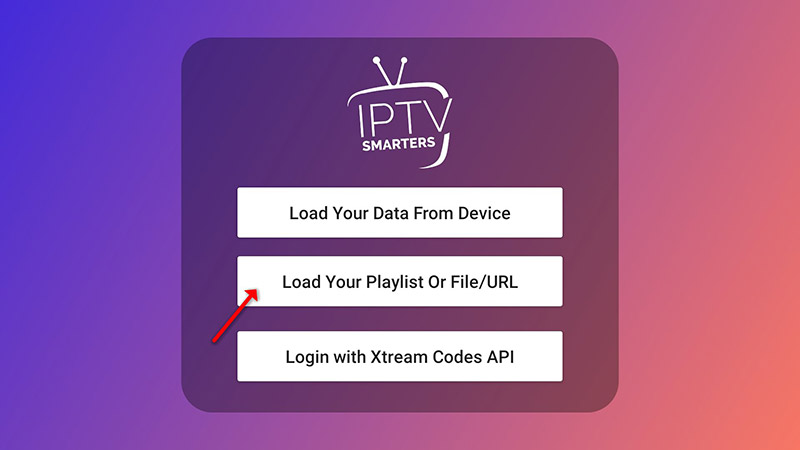
If you don't have an Xtream Code API, you can use an M3U URL and choose to Load Your Playlist or File URL.
STEP 1:
Open the app once downloaded and click on "Add user" then click on "Login with Playlist".
STEP 2:
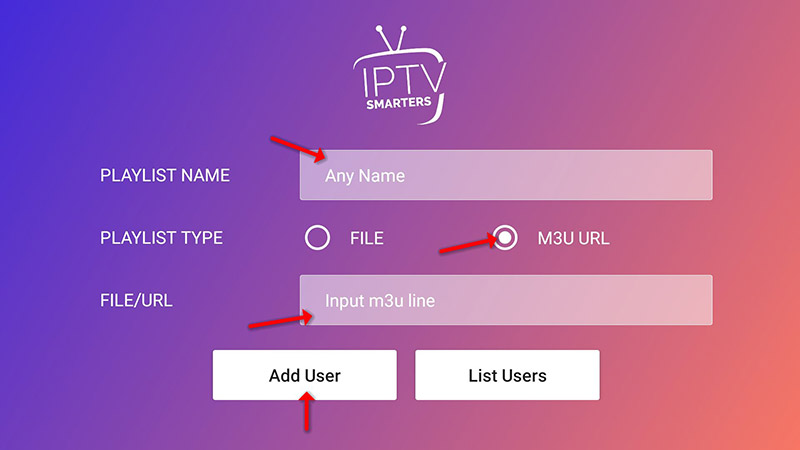
In this step, in the first box, select any name you want for example "IPTV Playlist".
Select "M3U URL" and enter the M3U URL that we sent you via Whatsapp or Email or Chat.
STEP 4:
Now click on the "Live TV" icon, select channels group then the channel you want to watch.


How to Install IPTV on FireStick
Set up IPTV The Fox on your Amazon FireStick and turn your TV into a streaming powerhouse. In just a few steps, enjoy 18,000+ channels and VOD using IPTV apps like TiviMate, IPTV Smarters Pro, or Smart IPTV. Ideal for HD/4K viewing on your big screen.
Even though IPTV Smarters is listed on Google Play Store and Apple App Store for Android and iOS mobiles respectively, Amazon Store does not host it. Therefore, if you want it on your FireStick, you will need to sideload it.
Step 1: Enable Apps from Unknown Sources
To sideload any app on your device, you should have the option Apps from Unknown Sources enabled or turned on. So, let's take care of this part first before we install IPTV Smarters on FireStick:
– On the home screen of your FireStick, you will find the menu bar on the top
In the menu bar, select Settings
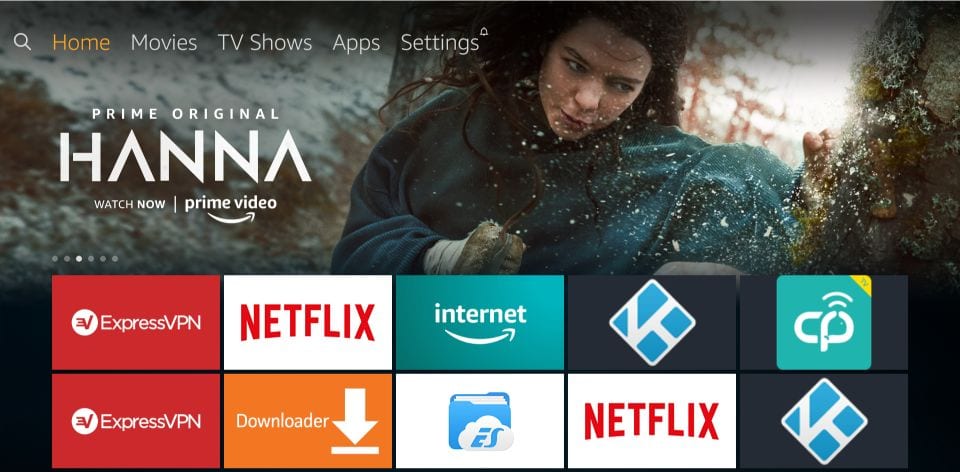
– In the Settings, choose the option My Fire TV

– When the following set of options are displayed on the next screen, click Developer Options
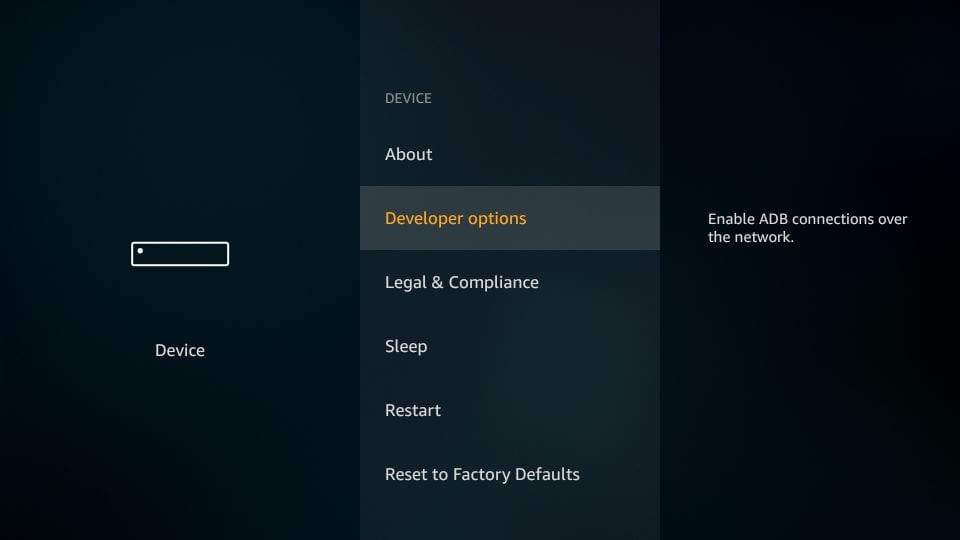
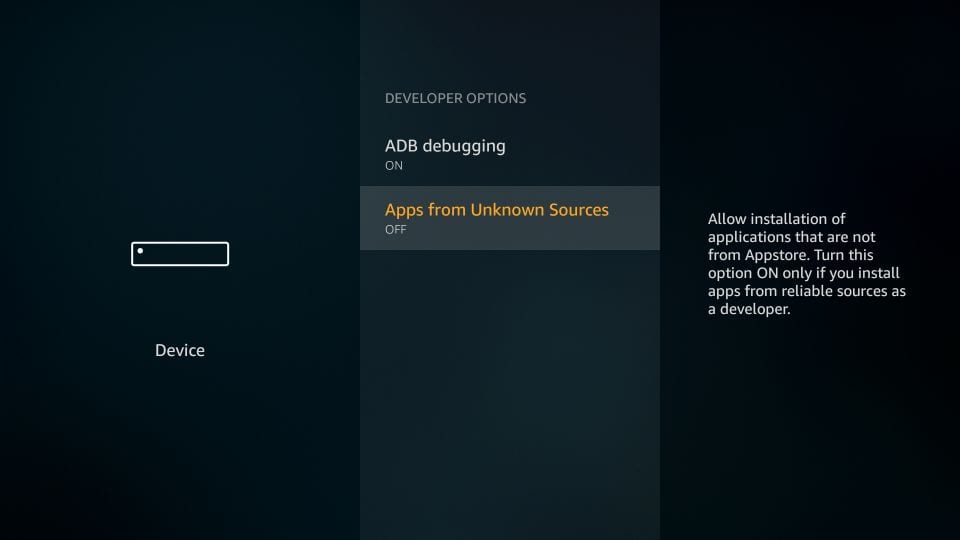
– Now, you need to check whether Apps from Unknown Sources is OFF or ON
Click it once if it is OFF
– A quick warning message is displayed
To keep Apps from Unknown Sources switched on, click Turn on
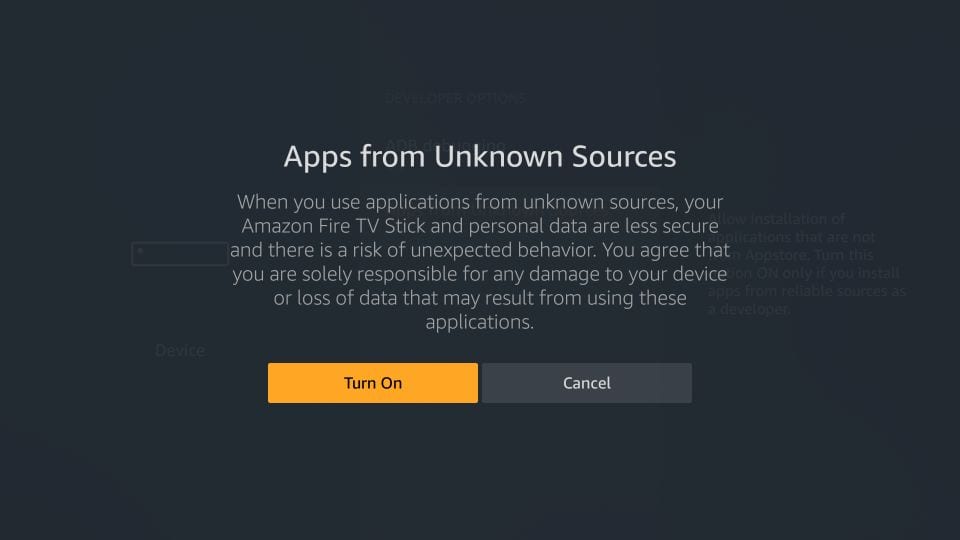
With this, you have configured the FireStick settings to allow the installation of IPTV Smarters and other third-party apps. Follow the steps below:
STEP 1: Install Downloader App
We will first install the Downloader app. This app will help you sideload IPTV Smarter on FireStick (because browser downloads are not allowed).
STEP 2:
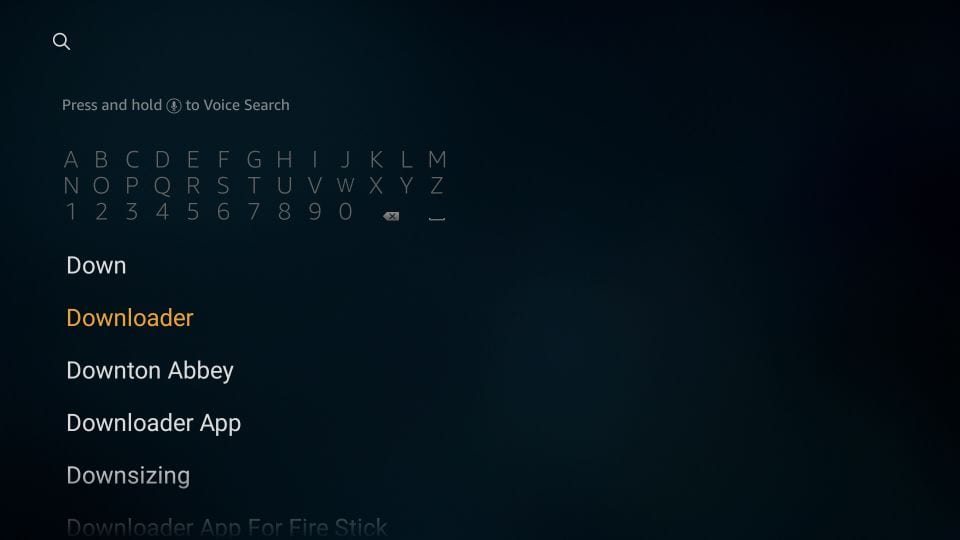
Highlight the Search option on the home screen of FireStick.
Type the name of the app (which is Downloader).
Click the Downloader option when it is displayed in the search results.
Choose the Downloader icon on the following screen and download and install the app.
STEP 3:
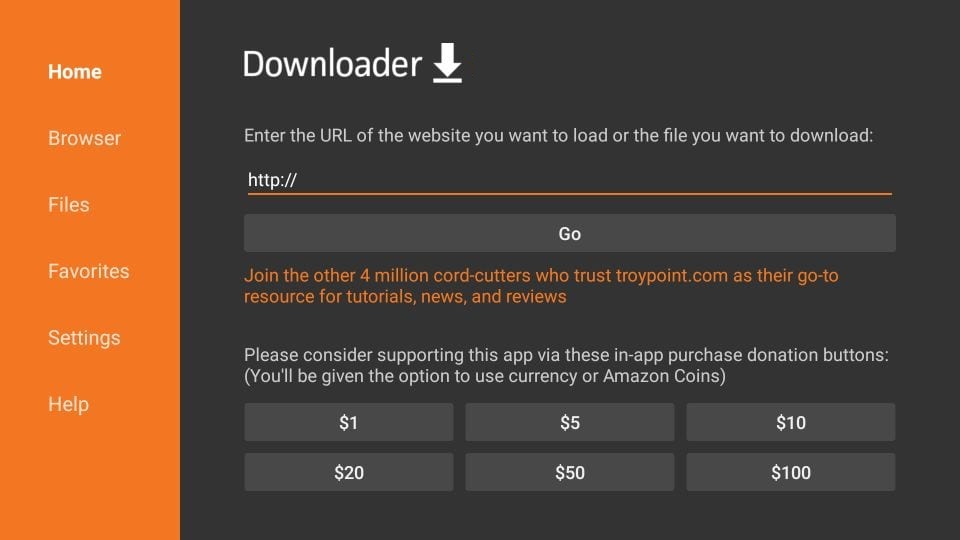
You may now open the Downloader app.
When you run this app for the first time, a set of prompts will appear. Dismiss them until you see the following screen.
On this screen, you need to click the URL textbox on the right side (make sure the Home option in the left menu is selected) where it says 'http://'
STEP 4:
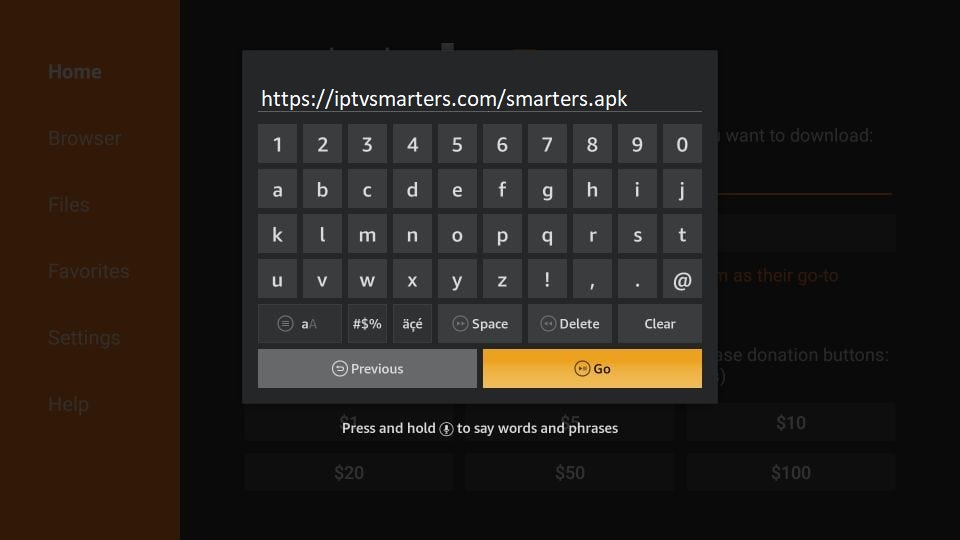
Go ahead and enter the following path on this window: https://iptvsmarters.com/smarters.apk
Click GO
STEP 5:
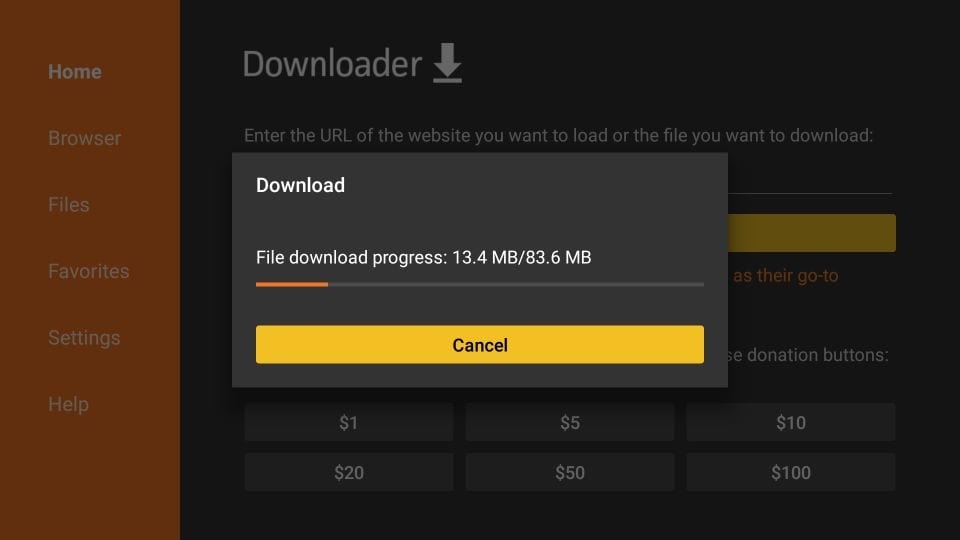
Give it a minute or two until the IPTV Smarter is downloaded onto your FireStick device.
STEP 6:
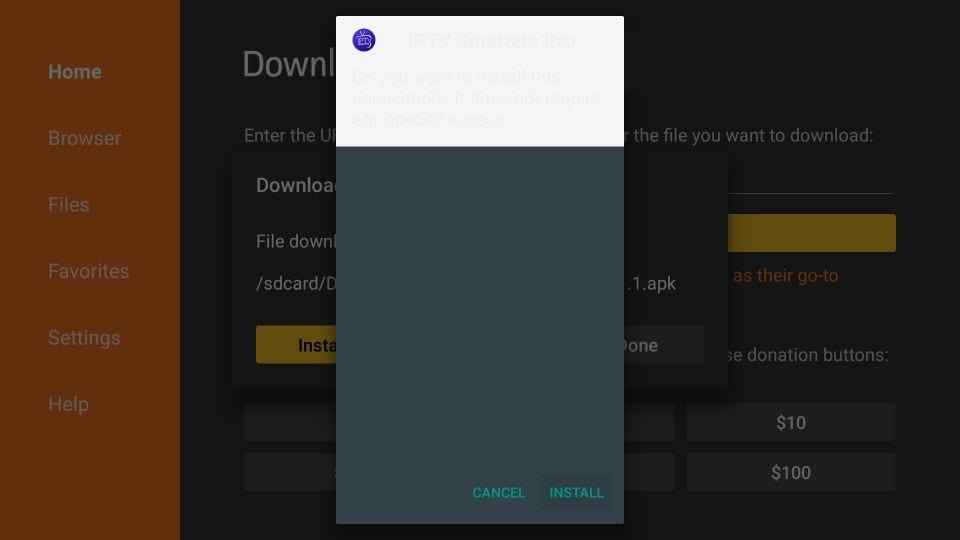
When the download has completed, the Downloader app will run the APK file and the installation will start.
Click Install
STEP 7:
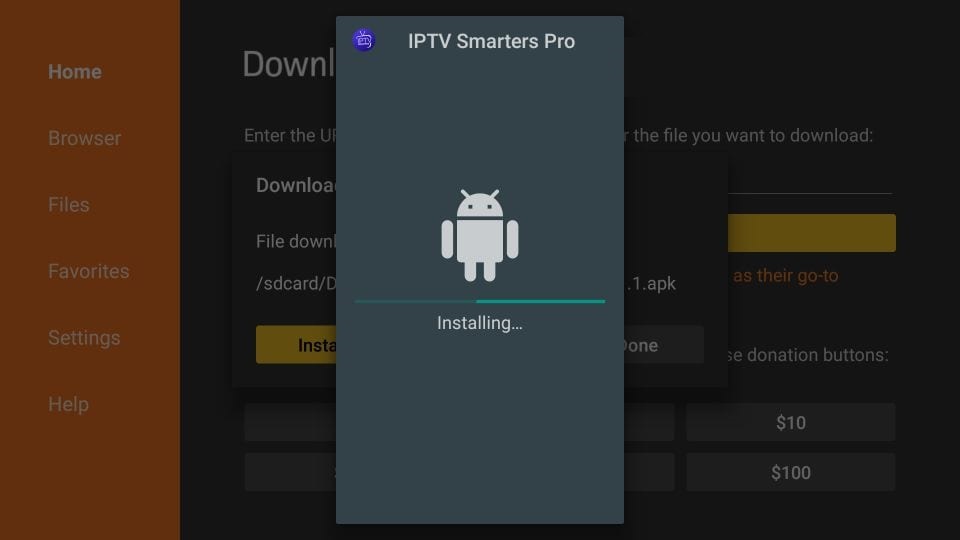
Wait for the installation to finish.
STEP 8:
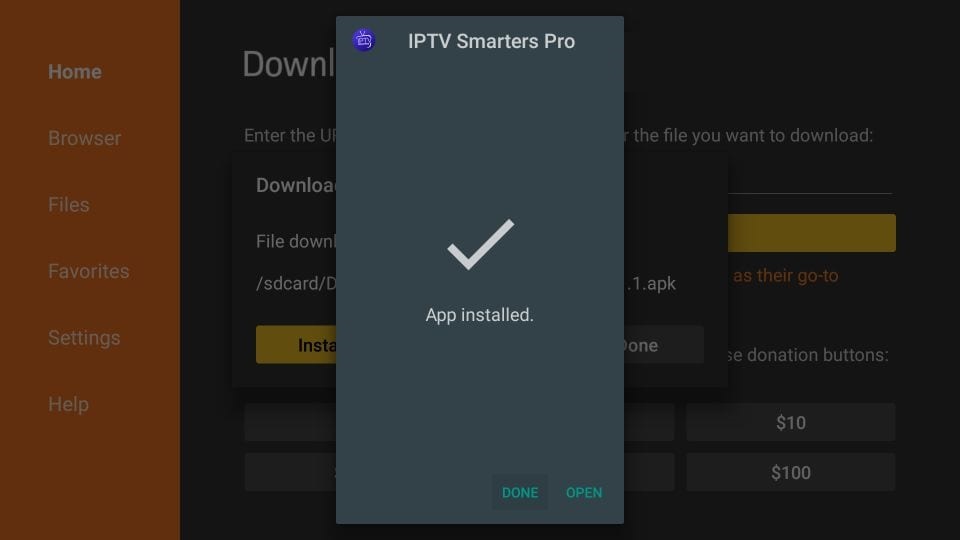
Installation is concluded with the App installed notification.
You may now choose to click OPEN and get started with IPTV Smarters.
I recommend choosing DONE so that you may first delete the APK file and save some space on the FireStick storage.
STEP 9:
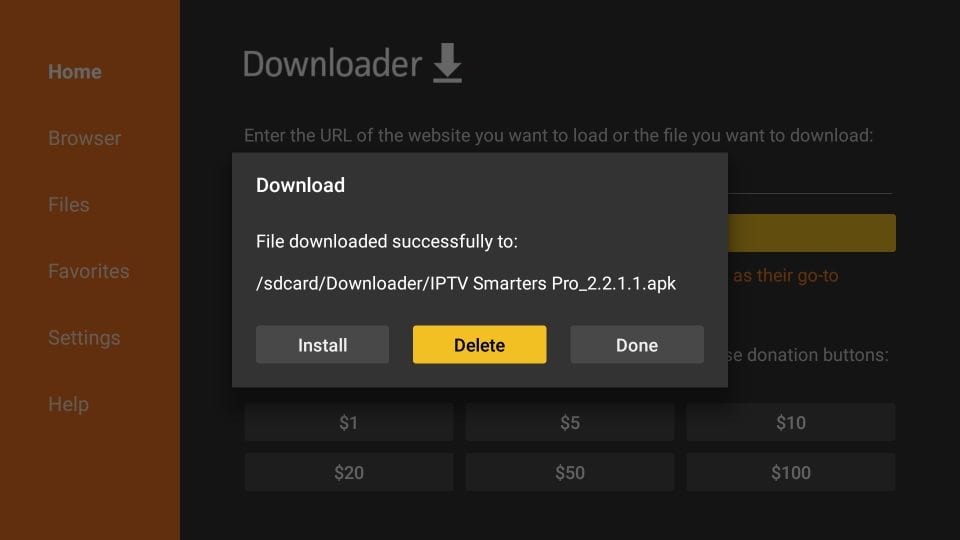
If you clicked DONE above, you will be back on the Downloader interface.
Click Delete
STEP 10:
Again, click Delete
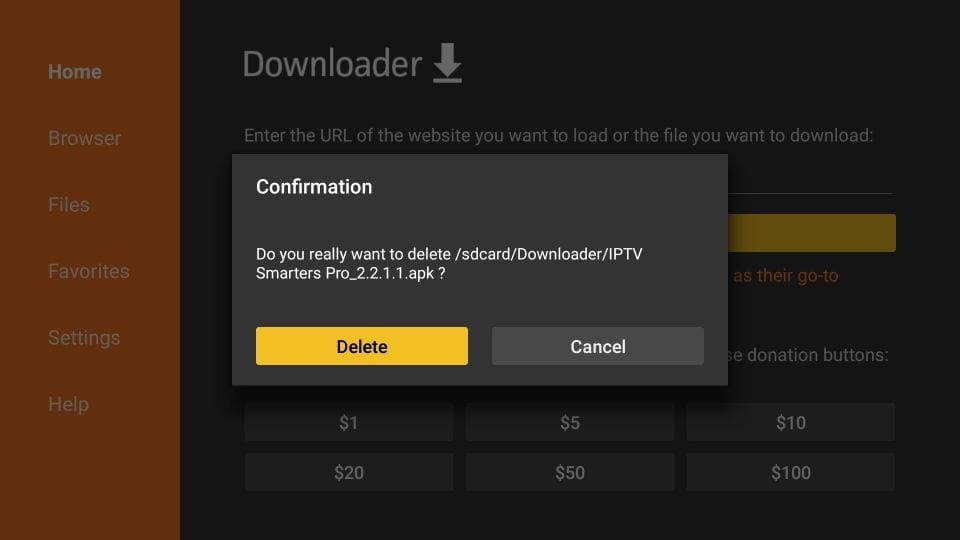
Great! You now have the IPTV Smarters app on FireStick.
When you run the IPTV Smarters app for the first time, Terms of Use will be the first window. Scroll down and click Accept.
You can add IPTV channels to IPTV Smarters in two ways:
- Setup via Xtream Codes API.
- Setup via Playlist.
Setup IPTV Smarters via Xtream Codes API
We recommend setup via Xtream Codes API because you will have the Catchup feature this way and also do not need to add any EPG URL (it will load automatically).
STEP 1:
Open the app once downloaded and click on "Add user" then click on "Login with Xtream Codes API".
STEP 2:
In this step, in the first box, select any name you want for example "4K Live IPTV". On the second and third boxes, enter the "Username" and the "Password" and the server URL that we sent you via Whatsapp or Email or Chat.
Now Click on "ADD USER" to proceed to the next section.
STEP 3:
Wait some seconds.
STEP 4:
Now click on the "Live TV" icon as depicted in the image via a red arrow.
STEP 5:
Now you must select the channel group that you want to watch and proceed to the next section.
STEP 6:
Now you must click on the channel name and then double click on the small screen to turn into the full screen as the final step.
💡 Pro Tip: After installation, go back to Downloader and delete the APK file to save space
Get Free TrialInstall IPTV on Samsung & LG Smart TVs
Watch IPTV The Fox on your Samsung or LG Smart TV without needing a separate box. Just install Smart IPTV or Duplex Play and start streaming over 18,000+ live channels and 130,000+ VOD titles in HD & 4K. Quick setup, smooth experience.
For Samsung Smart TV
- Press the Smart Hub button from your remote.
- Search for the Smarters Pro to install.
- Log in the Application with your subscription details i.e. Username, Password, Portal URL.
Great! You now have the IPTV Smarters app
When you run the IPTV Smarters app for the first time, Terms of Use will be the first window. Scroll down and click Accept.
You can add IPTV channels to IPTV Smarters in two ways:
- Setup via Xtream Codes API.
- Setup via Playlist.
Setup IPTV Smarters via Xtream Codes API
We recommend setup via Xtream Codes API because you will have the Catchup feature this way and also do not need to add any EPG URL (it will load automatically).
STEP 1:
Open the app once downloaded and click on "Add user" then click on "Login with Xtream Codes API".
STEP 2:
In this step, in the first box, select any name you want for example "4K Live IPTV". On the second and third boxes, enter the "Username" and the "Password" and the server URL that we sent you via Whatsapp or Email or Chat.
Now Click on "ADD USER" to proceed to the next section.
STEP 3:
Wait some seconds.
STEP 4:
Now click on the "Live TV" icon as depicted in the image via a red arrow.
STEP 5:
Now you must select the channel group that you want to watch and proceed to the next section.
STEP 6:
Now you must click on the channel name and then double click on the small screen to turn into the full screen as the final step.


Install IPTV on Windows & Mac
Stream IPTV The Fox on your Windows PC or macOS device using trusted apps like VLC Player, IPTV Smarters, or WebTV portals. Perfect for desktop viewing, this setup supports HD & 4K channels, EPG, and multi-device sync.
Step 1 : For Windows: https://www.iptvsmarters.com/download?download=windows_app and install the application IPTV Smarters Pro
For Mac: https://www.iptvsmarters.com/download/?download=mac and install the application IPTV Smarters Pro
Step 2 : Login to the application with your subscription details (Get details from your service provider)
Great! You now have the IPTV Smarters app
When you run the IPTV Smarters app for the first time, Terms of Use will be the first window. Scroll down and click Accept.
You can add IPTV channels to IPTV Smarters in two ways:
- Setup via Xtream Codes API.
- Setup via Playlist.
Setup IPTV Smarters via Xtream Codes API
We recommend setup via Xtream Codes API because you will have the Catchup feature this way and also do not need to add any EPG URL (it will load automatically).
STEP 1:
Open the app once downloaded and click on "Add user" then click on "Login with Xtream Codes API".
STEP 2:
In this step, in the first box, select any name you want for example "4K Live IPTV". On the second and third boxes, enter the "Username" and the "Password" and the server URL that we sent you via Whatsapp or Email or Chat.
Now Click on "ADD USER" to proceed to the next section.
STEP 4:
Now click on the "Live TV" icon as depicted in the image via a red arrow.
STEP 5:
Now you must select the channel group that you want to watch and proceed to the next section.
STEP 6:
Now you must click on the channel name and then double click on the small screen to turn into the full screen as the final step.
Alternative: VLC Media Player
- Download and install VLC Media Player
- Open VLC and go to Media → Open Network Stream
- Enter your M3U URL and click Play
Setup IPTV with MYTVOnline2
Formuler Z-Series is a premium Android IPTV box perfect for advanced users. Enjoy ultra-fast IPTV streaming using the MYTVOnline2 app, designed for smooth 4K playback, full EPG integration, and multi-connection support.
FormulerZ boxes are one of the best devices for watching IPTV.
The most important advantage of FormulerZ boxes is supporting both MAC base Portal System and M3U base Playlist.
FormulerZ8 is the last version of Formuler boxes with MYTV Online 2 application which support 4K Ultra HD streaming.
In this tutorial, we are going to show you how to bring IPTV channels to your MYTV Online 2 on FormulerZ8.
This setup guide can be used for all models of Formuler devices/boxes:
STEP 1:
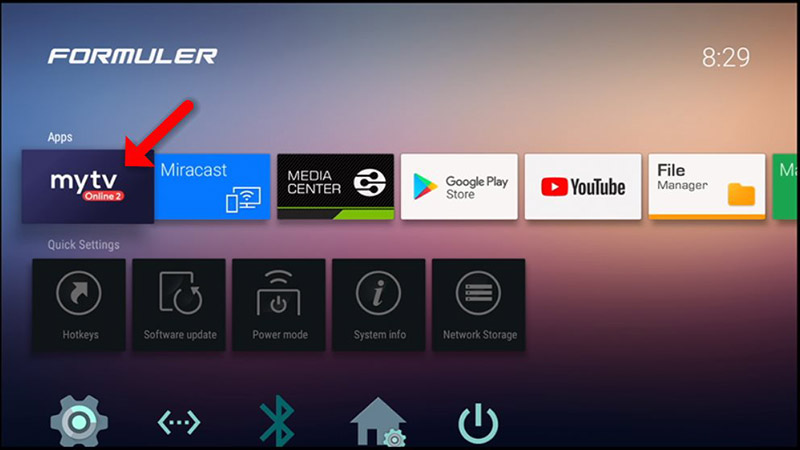
Open the exclusive application for watching IPTV in Formuler boxes "MYTV Online 2".
If you don't have this application on your device you can download it from the Google Play store.
STEP 2:
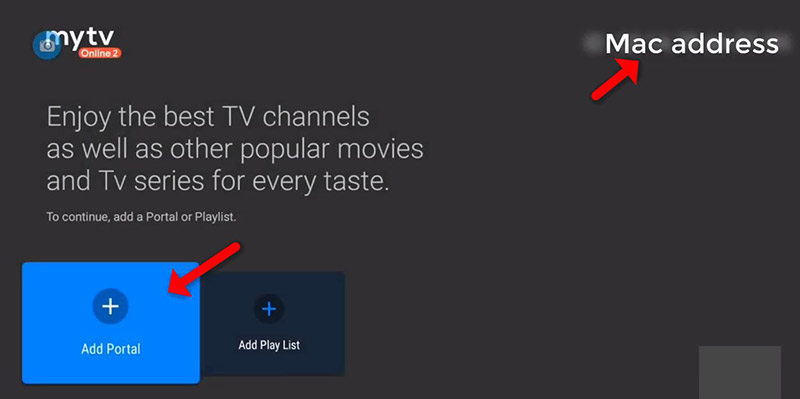
You can see the box's MAC in the top right of this page.
Please note, this MAC address must be given to your IPTV provider.
Here you can see the two options, select "Add Portal" to set the device as a MAC based device like MAG boxes.
STEP 3:
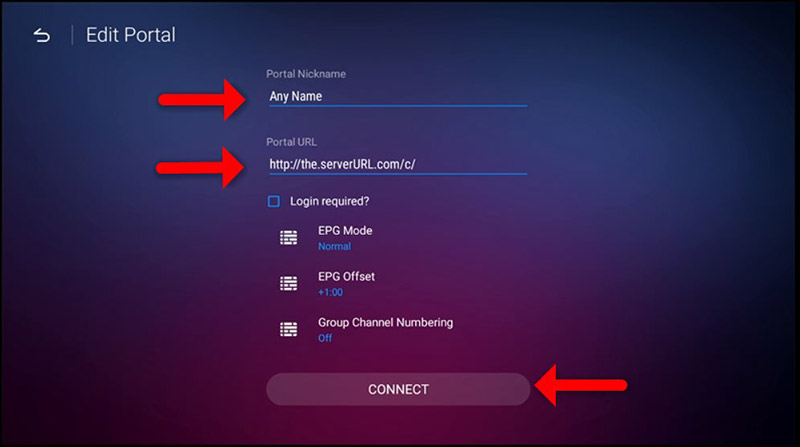
Enter Portal Nickname (Example: MYIPTV).
Enter IPTV Portal URL you get from your IPTV provider and click on "CONNECT". You can ask for a portal URL from your IPTV service provider.
STEP 4:
Successful Connection! You receive all channels associated with your subscription.
Please note, this might take a little time.

🔧 Troubleshooting Common Issues
- Check your internet speed (min 15 Mbps for HD, 25 Mbps for 4K)
- Use a wired Ethernet connection instead of Wi-Fi
- Try using a VPN to avoid ISP throttling
- Restart your router and streaming device
- Verify username and password (case-sensitive)
- Check the server URL format (should start with http://)
- Ensure your subscription is active
- Contact support for credential reset
- Use "Xtream Codes API" login method instead of M3U
- Update your app to the latest version
- Clear app cache and restart
- Wait 5-10 minutes for EPG to populate